Logging in to ExamDeveloper
- Sign in to ExamDeveloper through the Navigator portal.
- If this is your first time working on the project, you'll be asked to review the user license agreements.
- If you have access to multiple item banks and projects, you'll need to choose which item bank and project to launch.
- Depending on your user permissions, you may be taken directly to a specific page in the application (you may only be allowed to see certain pages).
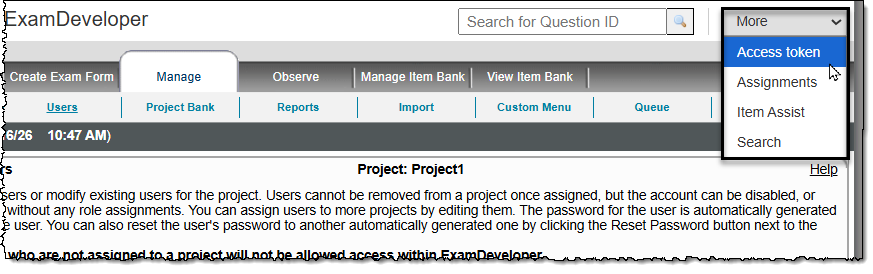
- If you are taken to the ExamDeveloper home page, you can click the More menu in the upper-right corner of the page to select additional areas of the application, such as Item Assist, Advanced Search, Assignments dashboard, and Access Token.